
Theme builder
Table of Contents
Theme builder provides a natural language, prompt-driven graphical interface to explore and preview CSS customization options for various ThoughtSpot components. You can adjust style settings and view changes in real time before applying them to embedded ThoughtSpot components, such as Liveboard, Visualization, Search, Spotter, and full application experience.
The Theme builder has two independent modes that integrate seamlessly.:
-
AI mode - AI Mode allows users to define style requirements using natural language prompts and brand assets — such as PDF guidelines or reference screenshots — to generate high-quality themes without manual CSS coding.
-
Manual mode - Manual mode refines the AI-generated output, providing granular control through specific token, color, and icon adjustments.
When Theme builder is enabled on your ThoughtSpot instance, you can access it by navigating to Develop > Customizations > Theme Builder. You can also access it from in-product help by clicking Guides > Live Playgrounds > Theme Builder in the ThoughtSpot UI.
Before you begin🔗
To streamline the Theme builder’s workflow, it is helpful to understand how its different styling modes interact.
-
AI mode generates global styles and complex layouts based on natural language prompts. It will fill in any gaps not already defined by manual settings.
-
Manual mode act as a direct override. Any setting done in the Manual mode takes priority over the changes done in the AI mode, and will not be overridden unless explicitly mentioned.
-
By importing a JSON you can set up the theme with pre-defined style variables. Once an AI conversation starts, the AI mode will take the imported variables into account just like the Manual mode. The settings through the imported JSON will not be overridden unless explicitly mentioned. However, if the JSON is imported before the AI conversation starts, you may need to explicitly mention it in your prompt to ensure AI uses the JSON data.
Try out styles and load changes🔗
To try out the customization options:
-
Go to Develop > Customizations > Theme Builder.
-
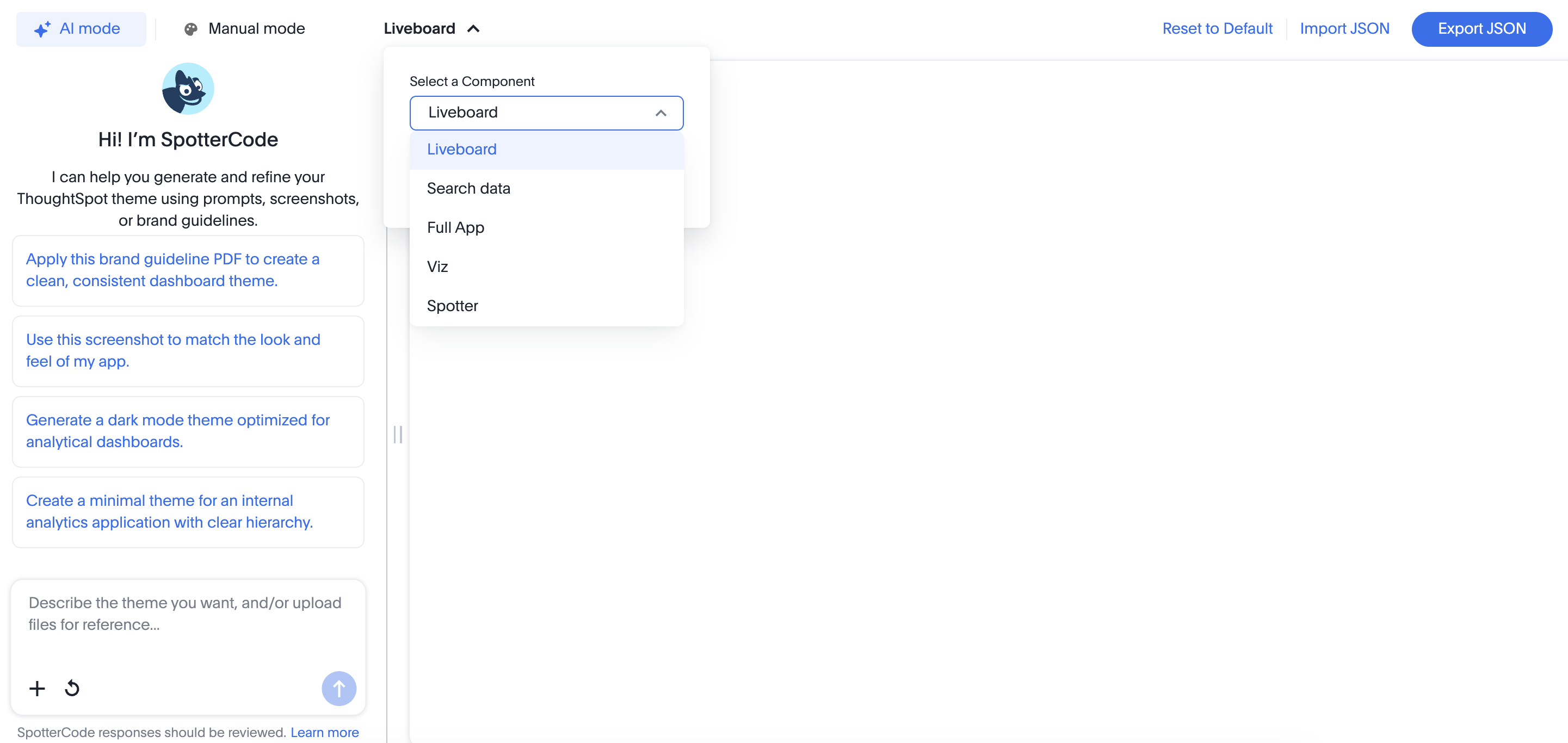
Choose the desired embed component from the dropdown on the top navigation.
-
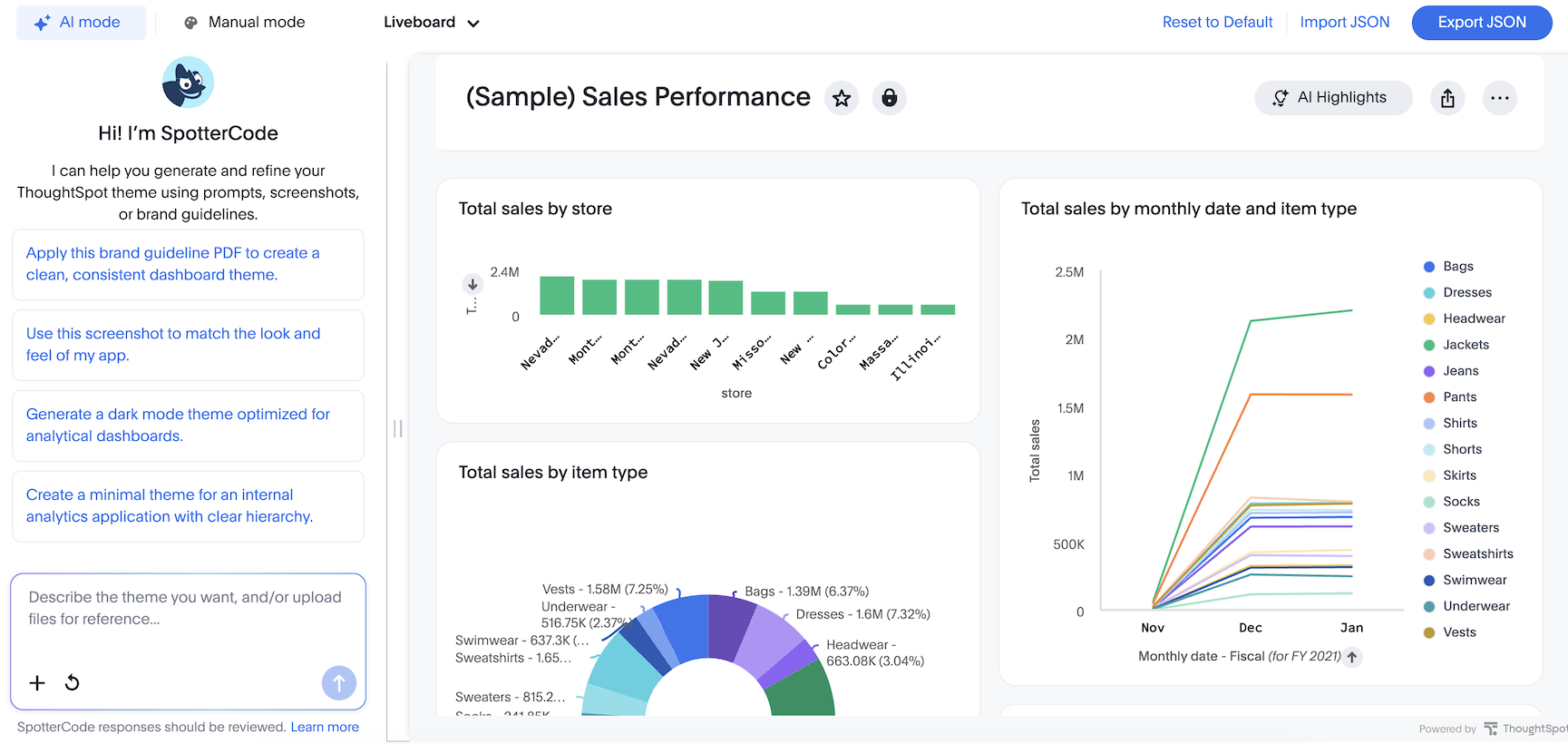
Select AI mode to provide styling instructions in natural language or upload a reference file to update the theme. You can request UI changes using simple natural language instructions, such as 'Apply dark theme'. Some sample instructions and accompanying assets include:
-
Use the primary and secondary color codes defined in the attached PDF to update the global theme.
-
Update all buttons to rounded corners with a border-radius of 12px. Use white font on the primary brand color for the button text.
-
Extract the background color code from the header in the attached screenshot and apply it to the main application navigation bar.
-
Map the values in the typography and spacing objects from the attached JSON to the application’s global CSS variables.
-
-
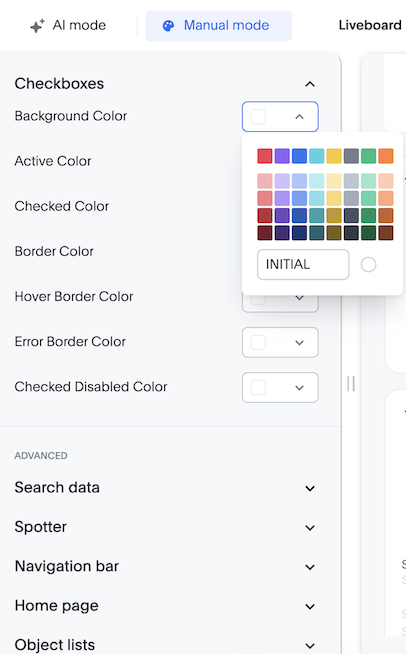
To further adjust the style settings, switch to the Manual mode. For instance, if you want to edit the background color of the checkboxes, then click the dropdown for the Checkboxes. Click on the text box for Background Color and select your desired color.
-
You will see the style customizations you just applied in real time, as the iframe refreshes automatically on each customization with your selected input.
|
Note
|
|
Export CSS variables in JSON format🔗
To download a copy of the CSS variables in JSON:
-
In the Theme builder Playground, click Export JSON.
-
To copy the CSS variables, click Copy JSON.
-
To download the JSON to your local directory, click Export.
You can use this exported JSON to implement the style in your embedded ThoughtSpot instance.
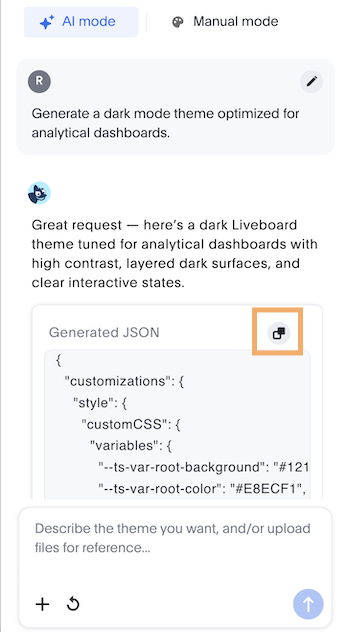
There is also an option to click the copy icon in the AI mode conversation response panel.
Import CSS variables with custom specifications🔗
Theme builder also lets you iterate on existing themes by importing a JSON. You can use an existing style in Theme builder, and add to it by importing the theme in JSON. To ensure the AI uses your imported JSON data, reference it in your first prompt. For instance, a mention like 'Use the styles from the imported JSON'.
To upload a set of CSS variables in JSON format:
-
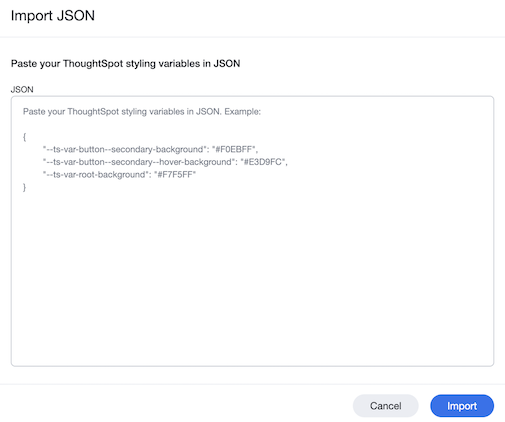
In the Theme builder Playground, click Import JSON on the top navigation.
The Import JSON modal opens.
-
Paste the JSON with your custom specifications. The Theme builder supports only the JSON styling variables in this option, for other input based styling use the AI mode.
-
Click Import.
If there are no errors, a success message appears at the bottom, and the iframe refreshes with the applied JSON.